 JotDrop
Export Google Keep notes: back up and move your notes
How do you export Google Keep notes?
To export Google Keep notes, use Google Takeout, select only Keep, and download the resulting archive. Keep an untouched copy before importing anything into another app: a completed download is not proof that every note arrived correctly.
We make JotDrop, so read the import recommendation with that in mind. The backup instructions work without it. Google's documentation, the Takeout screens and the import guides linked below were checked on 30 October 2026.
What are the Google Takeout steps?
Use a computer if you can. Google recommends a desktop computer for downloading and inspecting Takeout exports.
- Open Google Takeout and sign in to the account that holds your Keep notes. Check the account address before continuing.
- Choose
Deselect all. Scroll toKeepand select its checkbox. Leave other products unchecked unless you deliberately want their data too. - Select
Next step. - Under
Destination, setTransfer totoSend download link via email. This gives you a download link, not an email with your notes attached. - Under
Frequency, chooseExport oncefor a migration. - Choose
.zipas the file type. Select a maximum archive size you can comfortably download. If your data exceeds that size, Google creates multiple archives. - Select
Create export. - Wait for Google's email. Open its download link and download every ZIP belonging to that export. Complete any sign-in verification Google requests.
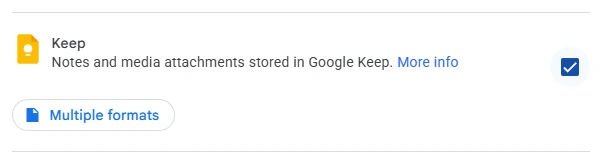
These steps follow Google's download instructions and the labels on the Takeout screen. Google says preparation can take a few minutes to a few days. Do not promise yourself a five-minute migration just because you only have five minutes.
Save the original ZIPs in a dated folder. Extract working copies somewhere separate. This gives you something unchanged to return to if an import goes wrong.
What does a Google Keep backup include?
Google's Keep export page lists note text and list items, voice recordings, drawings, images, colours, pinned and archived status, collaborators, and your list of labels.
That describes the export, not what another app will preserve. A destination may understand the words but not the colour, or store a collaborator's name without recreating shared access.
Google says you can download data that has not been deleted. Its general Takeout guidance also warns that changes made between requesting and creating an archive might not be included. For the final migration, avoid editing the collection while the export is being prepared, then check your newest notes carefully.
Reminders are not listed in Google's Keep export inventory. We could not confirm their inclusion in that documentation. Record important reminders separately rather than treating the archive as your task schedule.
What format does Takeout give you, and how do you open it?
There are two layers: the archive you download and the files inside it. Google documents ZIP and TGZ as archive options. ZIP is the simpler choice here. Google's guide says its archive_browser.html file explains the exported formats and how to view them.
Inside the archive, Takeout's own Keep formats panel lists these on 30 October 2026:
| What | Format |
|---|---|
| Note content | HTML, viewable in any web browser |
| Note content | JSON, for a JSON-compatible text reader |
| Image attachments | The original uploaded format |
| Voice attachments | 3GP, AAC or AMR |
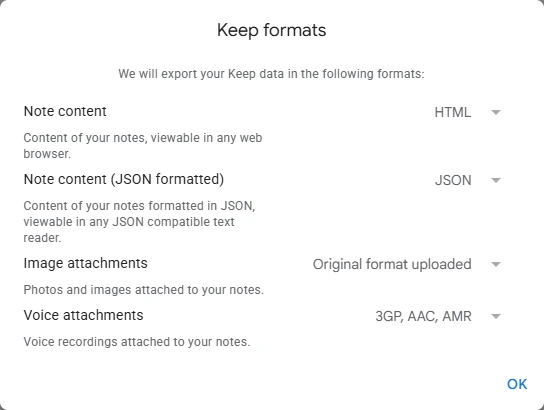
Importers use these files differently. Standard Notes' instructions tell you to select .html, not .json, files. Obsidian's open-source Importer reads the JSON notes and attachments and skips the HTML copies, an HTML summary and a text file listing labels.
For files you find in your archive, Google's opening guidance says HTML opens in a browser and JSON opens in a text editor. HTML is usually the useful reading view; JSON is structured data for software. Neither becomes Markdown simply because you rename its extension.
Keep the extracted folder structure intact. Moving a note page away from its image files can make checking the export harder. Avoid uploading the whole archive to an unknown online converter just to inspect it.
How do you check that the export is complete?
Check the export before checking the import. Otherwise you cannot tell which stage lost something.
- Confirm that all archive parts downloaded and extracted without errors. An extraction error needs attention, not optimism.
- Compare the exported collection with Keep. Include archived notes, older material and the most recent edits.
- Open representative examples: a long note, a checklist with completed items, a photo, a drawing, an audio recording and a labelled or pinned note.
- Inspect the actual attachments. A filename appearing in a note does not establish that its contents are present and readable.
- Repeat those checks in the destination app after importing.
Do not use the total number of extracted files as the note count. Different representations and attachments can produce several files for one note. If a destination reports a note count, use that as a warning signal for discrepancies, not a complete verification method.
For a large collection, start with a small, varied sample and keep a written list of exceptions. Spot checks cannot prove completeness. If every record matters, reconcile every record before removing the source.
What if the download fails or notes are missing?
Google's troubleshooting guidance suggests requesting a new export, exporting fewer products, or selecting a smaller archive size. Keep-only exports already avoid downloading unrelated account data.
Download links expire after about seven days, and Google limits each archive to five downloads. An expired link does not mean your Keep notes expired. Request another archive.
For missing recent edits, check the timing warning above. For a missing collection, check that you selected the correct Google account and downloaded every part. For work or school accounts, Google says administrators can restrict downloads. Ask your administrator rather than trying to bypass that policy.
If images disappear only after import, compare the same note in the extracted archive. Keep that example for the destination's support team, with private content removed.
How do you import the notes into JotDrop?
The JotDrop README documents two routes. In Obsidian, run Import from Google Keep, or use Settings > JotDrop > Import from Google Keep. In the web app, choose Import notes. The web app needs JotDrop Cloud, and the Free plan holds 250 MB, so check the size of your export before importing there.
The supported transfer includes colours, pins, labels, checklists, images, dates and available attachments. Reminders and collaborators do not transfer. Recreate reminders deliberately; shared access does not follow a ZIP file.
Test a few notes first. Keep the original export, and do not delete the source account until you are satisfied. In Obsidian and Android, JotDrop works with local Markdown files. The web app provides ZIP export instead of direct local .md files.
Which other apps have documented import routes?
Obsidian's Importer plugin accepts the Takeout ZIP and converts it to Markdown, with limits listed in our Obsidian guide.
Notesnook's Google Keep guide documents importing Takeout ZIP files through Settings > Import & export > Notesnook Importer in its web or desktop app.
Standard Notes' guide uses the extracted HTML files through its Google Keep import option. Follow the destination's instructions rather than assuming every importer takes the same input.
For help choosing a destination, see our Google Keep alternatives guide. Privacy questions have a separate guide to what Google says about Keep.
FAQ
Does exporting delete my Google Keep notes?
No. Google explicitly says downloading your data does not delete it from its servers. Deleting an account or its contents is a separate action.
Can I export only notes from a particular date range?
Google says Takeout does not support selecting a time period. Export the collection and work on a copy if you need a smaller set.
Can Takeout make recurring backups?
Yes. Takeout offers exports every month or every 2 months for one year. Google says scheduled exports aren't available to Advanced Protection accounts. Download and inspect each archive. A scheduled export is not continuous backup.
Sources
- https://takeout.google.com/: export options, labels and the Keep format list (sign-in required).
- https://support.google.com/accounts/answer/3024190?hl=en: export settings, archive formats, opening files, timing, limits and troubleshooting.
- https://support.google.com/keep/answer/10017039?hl=en: Keep export contents and deleted-data limitation.
- https://support.google.com/keep/answer/10431250?hl=en: organisation-controlled downloads.
- https://github.com/Diexar-Labs/jotdrop: import commands, supported transfer, local files and the web app's need for JotDrop Cloud.
- https://jotdrop.net/: reminders and collaborators excluded from migration; web ZIP export.
- https://notesnook.com/help/importing-notes/import-notes-from-googlekeep: Notesnook's documented Takeout ZIP import.
- https://standardnotes.com/help/35/how-can-i-import-my-notes-from-google-keep: Standard Notes' HTML-based Keep import.
- https://github.com/obsidianmd/obsidian-importer/blob/master/src/formats/keep-json.ts: which Keep export files Obsidian's Importer reads and skips.
- https://obsidian.md/help/import/google-keep: Obsidian's documented Keep import.