 JotDrop
Obsidian Google Keep: cards, capture and your own files
What does an Obsidian Google Keep setup need?
Use Obsidian's built-in Bases for a card grid, Daily notes for a quick inbox, or JotDrop for a Keep-style board over Markdown files. Start with the part you actually miss: seeing cards and capturing a thought quickly are different problems.
We make JotDrop, so read this with that in mind. You do not need our plugin to get useful cards in Obsidian. The options below follow Obsidian's documentation and the JotDrop project information, checked on 30 October 2026.
For a simple setup, choose one capture location and one way to review it. Adding several dashboards before writing a note is an excellent way to spend an afternoon on no notes at all.
Can Obsidian show cards without a community plugin?
Yes. Bases is a core plugin that creates views of files and their properties. Its Cards view displays a gallery-like grid, with optional cover images. The data remains in local Markdown files and properties; the view definition can be saved in a .base file.
This is a good first choice if you mainly want a visual index of existing notes.
- Choose a small folder of notes to use as an inbox.
- Run
Bases: Create new basefrom the command palette, following Obsidian's creation guide. - Open the base's view menu and select the Cards layout.
- Use the Filter menu to limit results to your inbox folder. Without filters, a base shows all files in the vault.
- Choose which properties to display, then sort by something useful, such as last-edited time.
- Adjust card width and, if useful, choose an image property for the cover.
The filtering and sorting controls are documented in Obsidian's view guide.
Do not mistake a gallery for a complete Keep replacement. Bases gives you a view of files and properties. Decide separately how you will create notes, handle reminders and capture information away from the computer.
Is Canvas a better Obsidian card view?
Canvas suits a different job. It lets you arrange notes, attachments and web pages in two dimensions, connect cards with lines and group related material.
Choose it for planning a room, mapping a project or laying out research. Choose a filtered Bases view if you want a folder presented as a regularly updated grid.
There is an important file distinction. Obsidian says a Canvas text-only card can exist without a separate note file. The canvas is saved in the open JSON Canvas format as a .canvas file. To make that text card a separate note, right-click it and choose Convert to file.
If your rule is "one thought, one Markdown file", use note cards that reference files, or convert text cards as needed. A box on a canvas is not automatically a standalone .md file.
What is the simplest quick capture in Obsidian?
Try Daily notes before installing another capture tool. This core plugin opens today's note or creates it if it does not exist. Its command can have a hotkey, and its settings let you choose a folder and template.
A practical setup is one daily note with a Captured heading. Add unfinished thoughts there, then move only the useful ones into separate notes later. This is a suggested workflow, not a feature you need to configure across six plugins.
It works well if speed matters more than having a separate card for every item. A card-based inbox is better if you prefer to scan and move individual notes. Neither arrangement makes you more organised by itself; pick the one you will actually open.
How does the JotDrop Obsidian Keep plugin work?
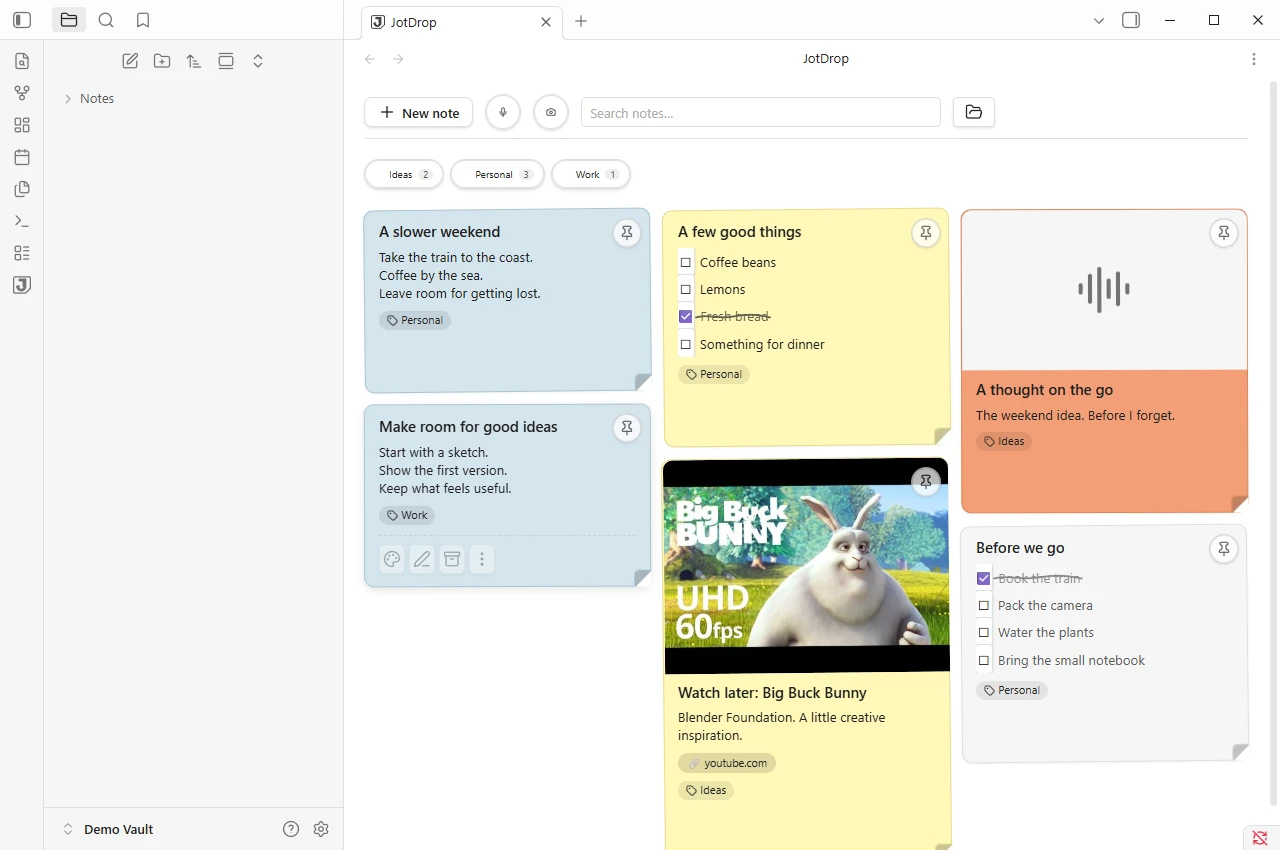
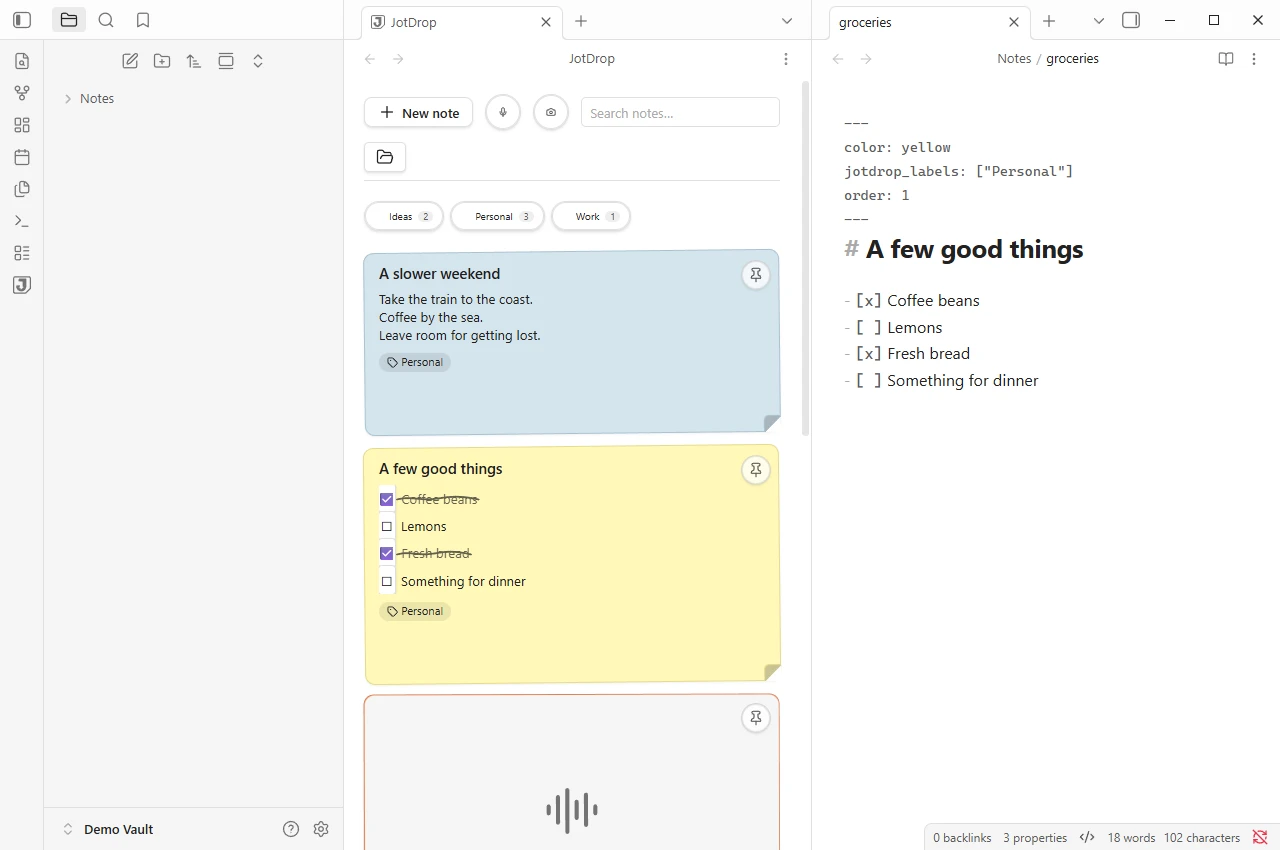
The JotDrop plugin adds a Keep-style board for ordinary Markdown notes in your vault. Notes go to a Mini Notes folder by default, and you can change that in the plugin settings. The public README documents the installation and the file-based approach.
The board gives you coloured cards, checklists, pins, labels, search, archive and trash. The underlying local notes remain files rather than an export you must request later.
To try it without rearranging your existing vault:
- Back up the vault and choose a small test folder.
- Open
Settings > Community plugins, turn off Restricted Mode if it is on, selectBrowseand search for JotDrop. - Review the plugin information, select
Install, thenEnable. - In JotDrop's settings, choose the folder for your board notes.
- Create a short note, a checklist and a note with an image. Check both the board and the underlying files before moving more material.
The install-and-enable sequence follows Obsidian's community-plugin instructions. Obsidian warns that community plugins run third-party code on your behalf. Treat installing one as a trust decision, even when the code is open source.
JotDrop's MIT licence makes inspection possible. It is not an independent security audit.
How do you capture notes on an Android phone?
JotDrop's native Android app is distributed through GitHub releases. It can work with local Markdown files. Use a folder accessible on the phone and decide how that folder will reach your desktop.
You can use JotDrop Cloud, or a suitable folder-sync arrangement. Without JotDrop Cloud, no JotDrop account or JotDrop server is required. A third-party sync service has its own account requirements, platform restrictions and privacy model.
Do not run two sync systems over the same notes folder. If the vault already has a sync method, do not add JotDrop Cloud over that same folder. Obsidian also warns against mixing services, because doing so can cause conflicts or corruption.
Test the route in both directions with a disposable note and an attachment. Confirm that an edit reaches the other device before trusting the setup with your whole collection.
Recurring reminders and speech-to-text belong to JotDrop's Android app, with speech-to-text dependent on device support. Do not assume those features appear in every interface. JotDrop has no native iPhone app. On iPhone you can use the web app, which needs JotDrop Cloud. The plugin also works inside Obsidian's iOS app, so you can use the board there too.
Which web clipper should you use?
There are two different tools here.
Obsidian Web Clipper is Obsidian's own browser extension. It saves clipped content as Markdown in your vault and supports templates. It is the straightforward option to investigate if you want web material in ordinary Obsidian notes without choosing JotDrop as your board.
JotDrop's Chrome clipper works together with the JotDrop Obsidian desktop plugin. It is not a standalone notes app or an independent route into the web app. Set up the desktop plugin before expecting the clipper to work, and test with a page that contains no private information.
Do not choose an extension just because its name contains "clipper". Choose the destination first: regular vault notes or your JotDrop board workflow.
How do you bring existing Keep notes across?
You have a non-JotDrop route. Obsidian's official Importer plugin accepts Google Keep (.zip) and converts the export to Markdown. Its guide describes choosing the ZIP, reviewing the generated template and previews, then importing.
Obsidian documents limits, including checklists becoming top-level items and reminders and user assignments not being imported. Test those structures rather than assuming the view will look identical.
JotDrop also provides Import from Google Keep in Obsidian. For the export, checking procedure and transfer limits, follow our Google Keep migration guide. Keep the original archive whichever importer you choose.
FAQ
Can I use Obsidian at work without buying a licence?
Obsidian says it is free for personal, commercial and non-profit use. Its paid commercial licence is optional. Your employer's software and data policies still apply.
Does Obsidian Sync encrypt the local Markdown files too?
No. Obsidian says its encryption choice affects the remote vault, not the local vault. Protect the device and its backups separately. Our encrypted-notes comparison explains this distinction.
Do community plugins update automatically?
Obsidian says they do not. Check for updates in Community plugins and review them deliberately. Leaving a plugin installed does not establish that you have its latest version.
Sources
- https://obsidian.md/help/bases: core Bases, local files and view definitions.
- https://obsidian.md/help/bases/views/cards: card layout and image settings.
- https://obsidian.md/help/bases/create-base: creation commands.
- https://obsidian.md/help/bases/views: filtering, sorting and view controls.
- https://obsidian.md/help/plugins/canvas: Canvas cards, file conversion and storage format.
- https://obsidian.md/help/plugins/daily-notes: capture command, templates and folder settings.
- https://community.obsidian.md/plugins/jotdrop: plugin listing, including desktop and mobile support.
- https://github.com/Diexar-Labs/jotdrop: JotDrop installation, Markdown storage, Android and clipper relationship.
- https://jotdrop.net/: platform limits, Cloud and local-file qualifications.
- https://obsidian.md/help/community-plugins: installation, trust warning and manual updates.
- https://obsidian.md/help/sync-notes: platform-dependent sync and warning against overlapping services.
- https://obsidian.md/download: native platforms.
- https://obsidian.md/clipper: official Web Clipper and Markdown output.
- https://obsidian.md/help/import/google-keep: official Keep import and limitations.
- https://obsidian.md/license: free commercial use.
- https://obsidian.md/help/sync/security: remote versus local encryption.